Genshin Impact Mac Play Methods and Installation Guide
Discover the best methods to play Genshin Impact on Mac in 2026, including PlayCover and GeForce NOW, for seamless and high-performance gaming.
As of 2026, there is still no official native macOS port of Genshin Impact. That is not new information. However, the workaround methods to play the game on a Mac have significantly improved and, depending on which kind of Mac your using, there are now some genuinely great methods for playing Genshin Impact (rather than just searching how to do it once you get in!) without feeling like you are fumbling through trial and error.
The first step in playing Genshin Impact on your Mac is to select a method that fits your Mac's hardware. There are key differences between Apple Silicon Macs and Intel Macs, so selecting the wrong method will cause you to waste a tremendous amount of time trying to get set up.
For a general overview, geolocation and GeForce NOW offer three main methods to play Genshin Impact using either type of Mac: PlayCover, GeForce NOW, and CrossOver.
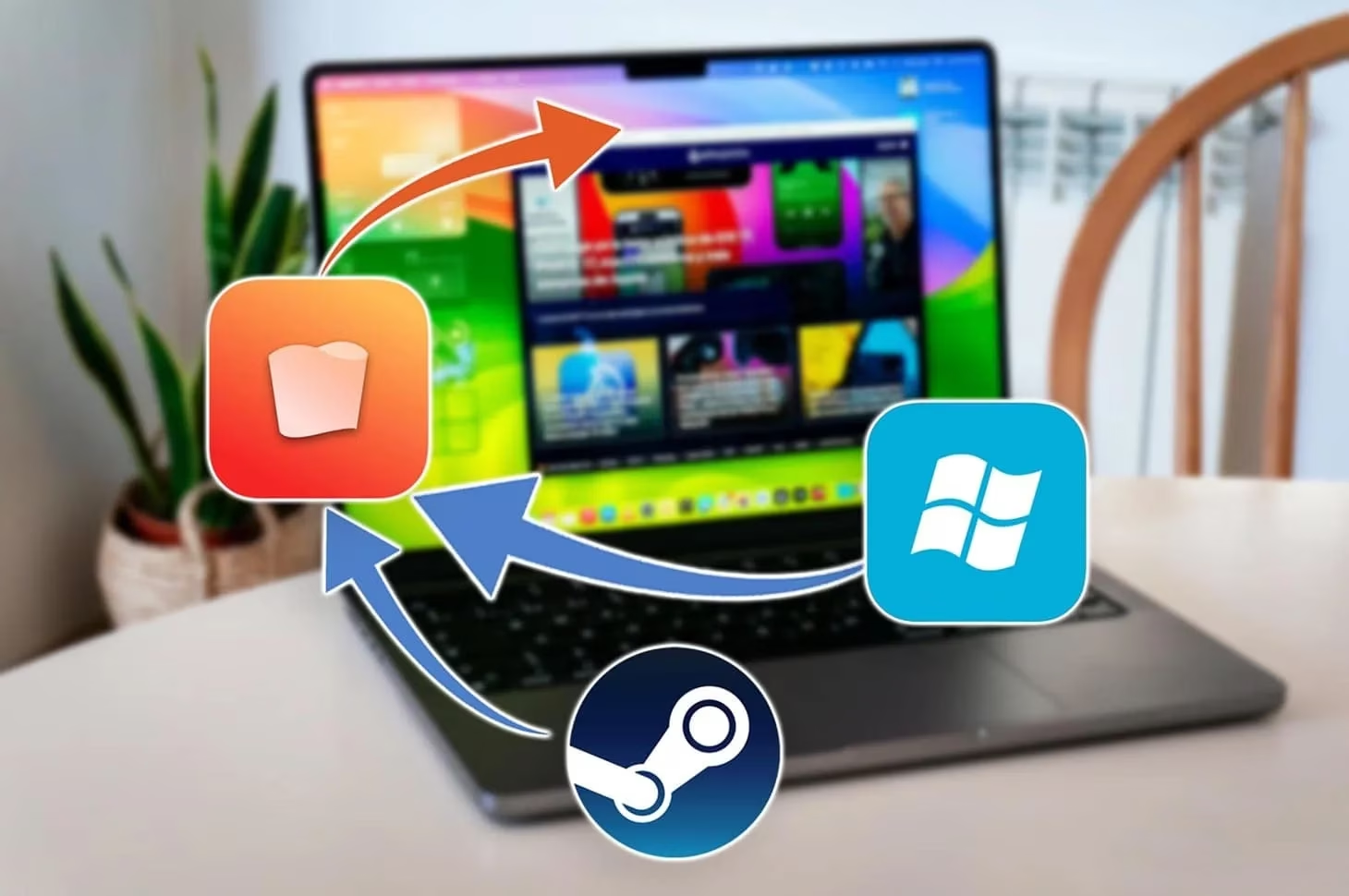
Play Genshin Impact on Mac in 2026
Unfortunately for Mac users, HoYoverse has yet to provide a standalone client for playing Genshin Impact, which is available to play on Windows, PlayStation, iOS, and Android platforms. Therefore, if you have a Mac, you are still required to utilize cloud gaming or an alternate compatibility tool to play the game. Before continuing, please take the time to verify your Mac's hardware type, as this will have a major impact on moving forward. | Mac Type | Best Method | Backup Method | Notes | | --- | --- | --- | --- | | Apple Silicon (M1-M4) | PlayCover (iOS IPA) | GeForce NOW | Local performance at its best, FPS is highest this method | | Intel Mac | CrossOver | GeForce NOW | PlayCover won't work for you | | Any Mac (budget) | GeForce NOW (browser) | -- | No local installation needed |
GeForce NOW is considered the best way to start playing, being practically free and very simple. If you are on an M Series Mac and are concerned with performance, then PlayCover is vastly superior. If you are on an Intel machine and want a local installation, CrossOver is your best choice.
Methods for playing Genshin Impact on a Mac
PlayCover
PlayCover is an open-source macOS application for running decrypted iOS IPA files directly on an Apple Silicon (M series) based device. Because M Series Macs share an ARM architecture with iPhones and iPads, this method works exceptionally well. PlayCover is also specific to Apple Silicon so if you're using Intel then you can stop reading; this will not work for you.
What makes the PlayCover method so much better than the others is that it converts the iOS version of Genshin Impact into something closer to a desktop game. With key remapping, mouse camera movement, and controller support, the biggest issue with gaming on your mobile device is solved right away. Instead of using a touchscreen on a Mac you can play a version of Genshin Impact that is more like a PC game than a mobile game. The performance of PlayCover is absolutely fantastic. There is no emulation layer which means PlayCover can provide much higher frame rates than any other method currently available for running Mac-compatible iOS applications, especially when running on more powerful processors like the M2 Pro and M3 Max, where users are frequently achieving around 60 FPS (frames per second) at the maximum level of visual quality during community testing on devices utilizing PlayCover 2.0.5 or later (latest release March 2025) with macOS Sequoia and M4 optimizations.
However, there are a few caveats to keep in mind when utilizing the PlayCover method for playing Genshin Impact. You'll need to have the IPA file, which you will have to source from a reliable third party, such as decrypt.day, and that poses some inherent risks. The second drawback is that Genshin's login procedure can sometimes be finicky since it often works best for first-time logins to use SMS/text verification via a phone number rather than using the regular email and password combination. Also, because PlayCover is not an officially supported tool by the developers at HoYoverse, there could be account safety concerns related to playing Genshin Impact using the PlayCover method.
Using GeForce NOW as an Alternative
If you're looking to make things as easy as possible, using GeForce NOW is by far the best method for playing Genshin Impact on Mac. You can use GeForce NOW with any Mac, whether Intel or M4, because Genshin Impact is run from the GeForce NOW servers — no e-mailing out IPA files needed. You can run Genshin Impact via the Chrome or Edge web browser or the macOS app (all of which you can download free of charge).
The benefits of using GeForce are many: no IPA location searching, no local computer compatibility adjustments, and no worry about whether your computer's GPU can play Genshin. You can get 60 minutes of free play at a time, but be prepared to wait for your turn in the queue during peak hours. $9.99/month for priority and longer sessions with Ultimate up to 1440p 120 FPS (on RTX 4080-based cloud servers).
The only thing you need to watch out for is your internet connection; 15Mbps minimum to run GeForce NOW at 720p @ 60fps and about 25Mbs minimum to run 1080p @ 60fps. Strongly suggest a 5G Wi-Fi/Ethernet connection; 2.4GHz networks are terrible as they introduce such jitter that gameplay starts to feel off, especially when attempting to combo or rotate quickly. Most players in NA/Europe will notice 30ms-50ms of latency, which is acceptable for normal exploration and other unchallenging tasks but is extremely noticeable in the Spiral Abyss.
The other drawback with the free plan is the queue. At peak times it is very common to experience extended wait times. If you play reasonably often, the $9.99 Priority option is definitely worth considering to avoid this issue altogether.
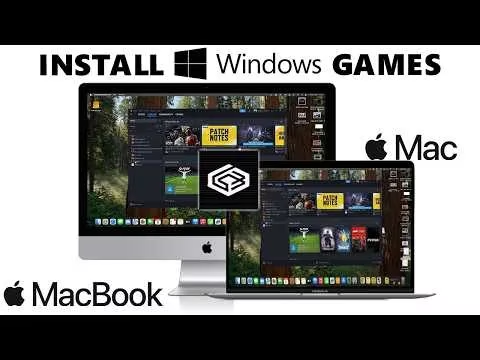
CrossOver and Windows App Layer
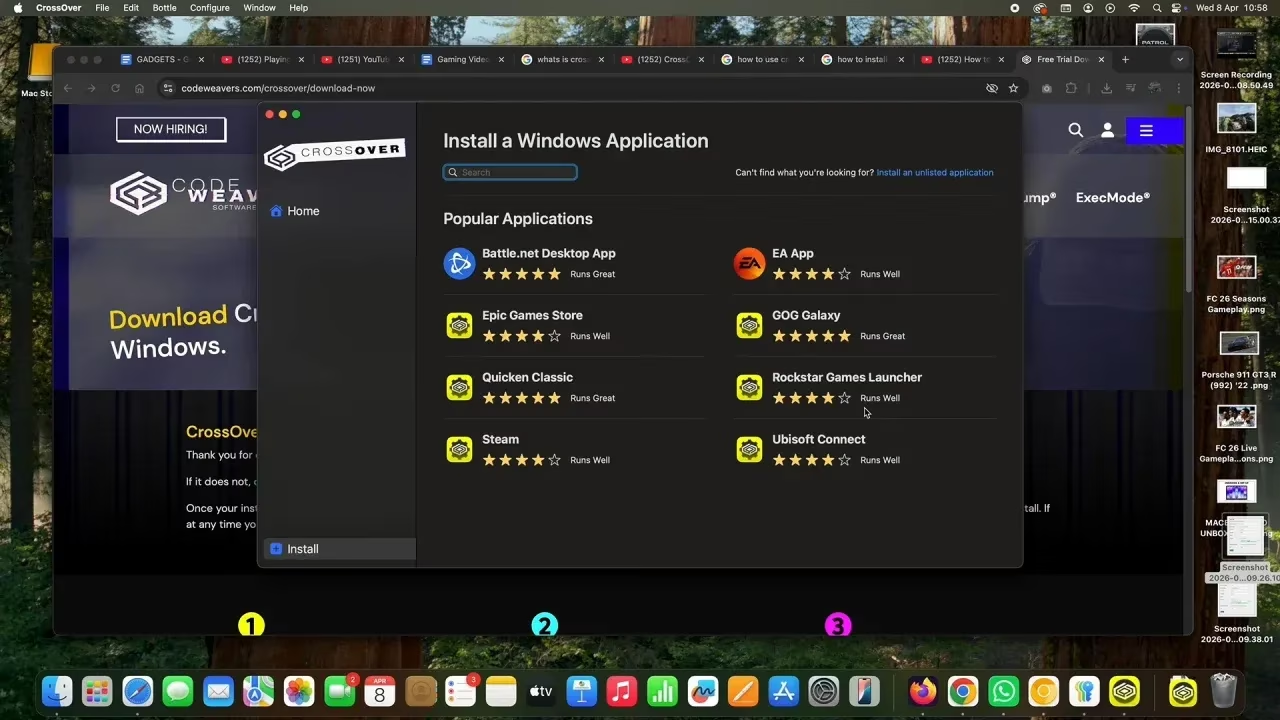
CrossOver provides the best option for local installation of Windows-style apps on Intel Mac. It also works on Apple Silicon if you prefer a Windows app-based system rather than an iOS style setup. CrossOver creates a compatibility layer so that it can run Windows applications within macOS by making use of Wine to do so. In this particular instance this means that you will set up CrossOver and create a bottle in which you will install HoYoverse Launcher and ultimately download Genshin Impact.
CrossOver setup will take longer than GeForce NOW but will have greater setup complexity than PlayCover, and it definitely solves a definite need in this marketplace. One of the major local game-playing choices for Intel Macs is CrossOver. However, in using CrossOver you need to make sure that you have configured everything properly: the HoYoverse Launcher needs to use the appropriate Wine prefix; you'll likely need to install several Visual C++ Redistributables in your "bottle" (the CrossOver copy of Windows) before it will work properly.
On Apple Silicon Macs, CrossOver has notably lower performance than PlayCover because CrossOver must translate Windows x86 instructions into something that can run on an ARM native build, whereas PlayCover will run using a mobile build that's native to the Apple Silicon architecture. On Intel Macs, however, that difference is immaterial because PlayCover doesn't exist on Intel Macs. Intel MacBook Pro models from 2019 and 2020 can run Genshin Impact well with average fps of approximately 30 - 45 fps on medium settings, making it much better than any of the older solutions that Mac users were using to run Genshin Impact before, assuming you have taken into consideration that upon release of a major patch for Genshin Impact it can take time before CrossOver updates their compatibility for the game.
PlayCover Installation Guide
There are several steps to take to get PlayCover up and running, but if you're able to follow these steps in the order set out below, it will be relatively easy.
-
Go to the official website for PlayCover GitHub, and download the latest version of the PlayCover DMG.
-
Move the file you downloaded to your Applications folder in macOS.
-
In macOS, go to your settings, and grant PlayCover the permissions it requests under Privacy & Security.
-
Obtain from a reliable source a clean Genshin Impact IPA file. To ensure that you are running a compatible version of Genshin Impact, obtain a version that is as close as possible to being the current version you are trying to download and install; as of early 2026 version 6.4 is the current version.
-
After obtaining your IPA drag and drop it into the PlayCover window to begin installation.
Once installed, open Genshin Impact through PlayCover and log in with your phone number using SMS verification. This shouldn't be such an important aspect, but it is; the anti-cheat program in the iOS app will reject your login when it thinks you are using a desktop computer to play. However, if you log in from your phone using SMS for validation instead of your email/password the chances of being rejected are much lower.
After logging in, the first thing you should do is configure your key bindings using the keymapping utility. Most players will use the following settings:
-
WASD to move
-
Mouse Look to control the camera angle
-
Q / E for burst and skill cast
-
Shift to sprint
-
Space Bar to jump
PlayCover also provides a community-based keymapping for Genshin; if you do not want to set up keybindings manually this will save you time. For those who prefer using a controller, MFi controllers, and Xbox and Dual Sense controllers connected via Bluetooth should all sync seamlessly with the iOS version.
Getting Started with GeForce NOW
Getting started with GeForce NOW is a very straightforward process.
-
Sign up for an account at geforcenow.com.
-
Download the macOS App or go to play.geforcenow.com in the Chrome web browser.
-
Log in and search for Genshin Impact.
-
Launch the game and when prompted, log in with your HoYoverse account.
When you first log in to GeForce NOW, your accounts will be automatically linked. Follow-up logins are quick because you won't need to complete the full authentication process each time you launch the app.
For the best results with GeForce NOW, make sure you configure your connection speed in the GeForce NOW settings to the same quality as the stream output. Most players will be best served using the 1080p@60 FPS streaming configuration as that provides optimal results for most connections. If you are on a plan that is considerably larger than yours and your internet can support it, you could be able to play at 1440p. The main thing to remember is to be connected to either 5 GHz Wi-Fi or Ethernet. Significantly cutting down on real-world latency: Approximately 15 to 25ms can be obtained simply by changing your connection from 2.4V to 5V, noticeably altering how responsive combat feels.
If you are tested and forced to use the free version of the application, starting at an off-peak time will assist you as well. Late weekday mornings (Monday to Friday) are typically the least busy time of day for testing, making this a perfect time to test.
Genshin Impact Mac Performance & Controls
The performance you receive using Mac is highly dependent on the method you are using, as well as the Mac you are playing on. With PlayCover running on an M1 MacBook Air, you will typically receive an average FPS of 40 to 55 in medium to high settings, whereas if you were to play on an M3 or M4 MacBook Pro, you will find that 60 FPS at high settings will be a relatively simple task for the machine, with reduced thermal throttling (i.e. decreased FPS) when playing over extended periods.
The iOS version also has a maximum display resolution of 2048x1536 (essentially an iPads quality), however, due to a Retina display, you should experience a decent amount of sharp quality even at this resolution. It would be best to observe how hot you are, and especially in fanless computers, like the MacBook Air, extended playtime of 30 to 45 minutes (example: boss farming, abyss runs, event combat, etc.) can heat the chip enough that your performance may drop significantly after 30 to 45 minutes, so I highly recommend you stay plugged in during your sessions. Here is a summary of what we have found from testing PlayCover:
-
M1 MacBook Air (4-55 FPS on medium-high) may reduce the performance due to thermal throttling on prolonged use
-
M2/M3 Pro MacBook Pro (60 FPS on high) are solid systems with long term capability and can be run on high
-
M4 MacBook Pro (60 FPS on high) have the best overall combination of thermal management/stability
For controls, using an iOS build for controller support tends to feel better than using a keyboard mapping but you will need to practice using WASD and mouse as your movement system for the first time until it feels comfortable. If you are used to using a PC to play Genshin Impact, the difference is going to be noticeable.
Another consideration is the amount of storage Genshin Impact will take. The iOS build is generally going to take 15-20 GB and considerably less (50+ GB) than what a Windows client will require. Although the battery drain will be substantial based on device processor and display brightness, you will lose approximately 20-35% of your battery in one hour of using PlayCover.
Using GeForce NOW will reverse everything we’ve talked about above. You won’t care what device you have since the internet speed is far more important than the actual hardware. If you have a good quality internet connection, you could play Genshin Impact on a 2019 or older Intel-based MacBook Air at 1080p/60 FPS reliably.
Genshin Impact on Mac Issues and Solutions
The most common issue when playing Genshin Impact on Mac through PlayCover are Login verification errors. The easiest way to resolve this issue is to use SMS phone number verification rather than email/password to login on the iOS client. The process of unverified application reset (clear app data/cache) in the PlayCover app isolation can usually resolve issues caused by entering a verification loop and re-trying with different wi-fi networks.
An application that crashes following a release of a security patch will often run into issues because the installed copy of the iOS application is no longer congruent with the production version. This occurs every 6 weeks when installing a new version of Genshin Impact, therefore to prevent versions from mismatching (having to reload the updated iOS application) by logging into a 6 week old version when you log into Genshin Impact requires either a patch larger than your installed copy or an invalidated production instance of your iOS application (the application hangs and exits to your PC desktop).
A black screen or hanging at load time is generally due to your PlayCover iOS application (not necessarily running on CrossOver) lacking permissions in the PlayCover applications area. To troubleshoot this issue, go to System Settings -> Privacy and Security and ensure that the PlayCover application has been granted full access to your disks. If you are running the iOS application under CrossOver, then generally a black screen indicates the required DXVK components are not available or that Visual C++ is not completely installed and/or configured in the CrossOver bottle.
There are legitimate safety and security concerns with regard to anti-cheat and account safety in the HoYoverse ecosystem. There are several reasons to believe that being candid about the existence of these risks is the best way to reduce those risks. For example, the Terms of Use for HoYoverse expressly state that the use of unapproved third-party software is prohibited. Since PlayCover runs an iOS build but not in an authorized production environment, it can be counted as a third-party application with regard to that expressly prohibited category, therefore, there have not been widespread bans levied against PlayCover users that could be specifically identified. However, the risk of being identified for using the PlayCover application also exists. GeForce NOW and CrossOver adhere to the pathing of their respective game launchers more closely than PlayCover does, so they have less exposure to risk. That being said, No Matter how you access Genshin Impact either through PlayCover or CrossOver, being a HoYoverse Account holder without Two-Factor Authentication is a poor idea. ### Genshin Impact Mac FAQ
Can I play Genshin Impact on my Mac?
No, Genshin Impact does not currently have an official macOS client, so you won't be able to play this game directly on your Mac. Current options for playing Genshin Impact on a Mac are using the iOS App Store, cloud streaming, or through a Windows compatibility layer.
Is PlayCover Safe?
PlayCover is open-source and is generally considered a safe way to play games on Mac if you download it from the official GitHub repository. But, you need to verify your IPA location, since the past reasons of PlayCover's non-support by HoYoverse, there are bigger concerns involved.
What is the best Mac to play Genshin Impact?
If you're playing Genshin Impact locally on your Mac, your best experience will come from using any Apple Silicon Mac with an M2 Pro or better chip; i.e., the M3 Pro and M4 MacBook Pro models will provide you with more thermal headroom to reach 60 FPS at higher settings for extended periods of time.
If I have an Intel-based Mac, can I still play Genshin Impact?
Yes, you can absolutely play Genshin Impact on an Intel-based Mac, however, your options for playing Genshin Impact on a Mac with Intel will be more restricted than if you were using an Apple Silicon-based Mac. Your primary method for local installs (if you are using an Intel-based Mac) will be CrossOver (Crossover) and the easiest, most maintenance-free method of playing Genshin Impact on your Mac will be using GeForce NOW, which will also work great on an Intel-based Mac with a good internet connection.
Conclusion
In 2026, GeForce NOW through a web browser will still be the fastest, lowest-effort way to play Genshin Impact on a Mac. If you are using an Apple Silicon-based Mac, PlayCover will be the best-performing option for playing Genshin Impact and will get you closest to a native experience. If you are using an Intel-based Mac and prefer to install a local Windows-based version, CrossOver will provide you with a workable middle-of-the-road solution that is continually improving over time. Ultimately, your choices should be based on your Mac computer type, budget, and how much work you are willing to put into setting up for better FPS and stability.
Comments (0)